
Minecraft Font Generator
The Minecraft Font Generator turns text into a block-built letter blueprint for Minecraft builds. Enter up to 60 characters, switch between 3D and 2D preview, adjust spacing, shadow, or bold, then export it as PNG, SVG, JSON, CSV, or a text map. It is part of our Text & Font collection.
Stats
Downloads
PNG & SVG export the full blueprint. JSON & CSV export block coordinates. Text Map is a copy-paste ASCII blueprint. .schematic / .litematic use the nearest Minecraft block colour; wall or floor layout is set in the controls.
Row Guide
Related Generators
Beyond creating Minecraft Potion Generator, you can also customize in-game text with the Minecraft Text Generator, add colorful effects using the Minecraft Gradient Generator, or explore game milestones with the Minecraft Achievement Generator.
Example Font Results
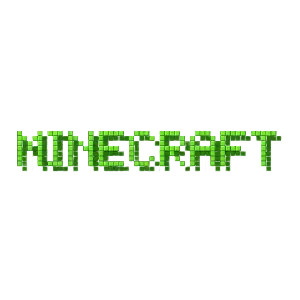
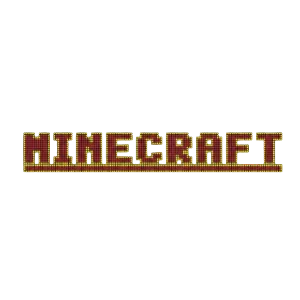
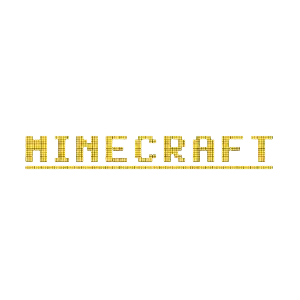
Each example shows letters and numbers as a pixel-perfect blueprint of blocks, with an optional drop shadow. The live preview switches between 3D and 2D, and the stats update as you adjust the scale.
What is a Minecraft Font Generator?
A Minecraft font generator draws your text as pixel lettering made of square blocks. Type text into the box and each glyph appears on a grid, with an instant preview in 2D or 3D. Letters, numbers and common punctuation are supported, up to 60 characters.
Rather than an installable font file, you get a blueprint with a block total. Download it as PNG, SVG, JSON, CSV or a text map, then build it in-game.
What This Generator Gives You
Enter up to 60 characters and get them as Minecraft block letters, with a live 3D preview, build stats and a row guide.
Lettering Controls
Text can use A to Z, 0 to 9 and common punctuation, with line breaks for new lines. Block scale has four sizes. Sliders set letter spacing and line spacing, and toggles add bold, italic, underline and outline.
Block Colours and Shadow
Block materials come as 20 presets, including Grass Block and Obsidian, plus a custom colour option. The Minecraft-style shadow toggle adds a darker layer down and right, offset by the block scale.
3D Preview and 2D Blueprint
Drag the 3D preview to turn the letters, and scroll to zoom. The 2D blueprint shows grid lines and a column-and-row readout on hover, and clicking a block marks it as placed.
Stats, Row Guide and Exports
The stats panel counts blocks in stacks of 64, and the Row Guide lists runs and skips per row. You can export PNG, vector SVG, JSON and CSV coordinates, a Text Map, or .schematic and .litematic files for wall or floor builds.
How to Use the Minecraft Font Builder
Type a message, set the block scale and spacing, then preview the custom Minecraft-style text in 3D or 2D and download your blueprint.
1. Enter Your Text
Click the text box and enter your text, up to 60 characters. Press Enter to start a new line. Letters, numbers and common punctuation are supported, and lowercase letters appear as capitals.
2. Choose the Block Scale
Set the Block Scale from 1 to 4 with the slider or plus and minus buttons. Every pixel in the glyphs becomes a square of blocks, so higher scales mean bigger lettering and more blocks.
3. Adjust Spacing and Bold
Letter Spacing starts at one pixel of spacing and goes from 0 to 6. Line Spacing runs from 1 to 8 for multi-line text, and the Bold switch makes every stroke one pixel wider.
4. Control the Shadow
With the Shadow (Minecraft style) toggle on, the tool imitates the shadow Minecraft draws behind its text. Switch it off for bare letters. The shadow is darker, sits offset down and right, and scales with size.
5. Choose a Block and Preview
The Block dropdown offers 20 preset blocks, including stone, oak planks and deepslate, while the Custom picker covers any other shade. Switch between 3D and 2D, dragging to rotate or pan and scrolling to zoom.
6. Check Stats and Export
Read the block total, stacks and size in Stats, then follow the Row Guide row by row. Download the blueprint as an image file (PNG or SVG), export JSON, CSV or a Text Map, or save a .schematic or .litematic file for building in-game.
Common Settings & Popular Presets
Block scale, letter spacing and shadow decide how your blocky lettering reads once it’s built. These nine settings are quick starting points.
| Option | Best For | Pro Tip |
|---|---|---|
| Block Scale 1 | Small text, such as a short name on a compact build | Use it for a first look at the layout, then raise the scale only if the letters feel too thin. |
| Block Scale 3 to 4 | A large size title across a wall or open ground | Each letter pixel becomes a 3×3 or 4×4 square of blocks, so read the stacks figure in Stats before you start gathering in Survival. |
| Letter Spacing 0 | Tight lettering where width is limited | With no gap, adjacent letters crowd together, so preview the word in 2D first. A value of 1 leaves a clear gap. |
| Line Spacing 3 and up | Stacked lines, like a server name over a tagline | The gap grows with Block Scale, so recheck it after changing the scale. Press Enter in the text box to start a new line. |
| Bold toggle on | Chunky, wide letters on short titles | Bold adds one extra pixel column to every stroke, which is wider still at higher scales, and it narrows the openings inside letters, so check it in 2D first. |
| Shadow toggle on | Lettering that needs to stand out from a plain wall | It’s on by default and adds a darker shadow layer offset diagonally from the letters. Disable it to trim the block total; Stats shows the shadow count next to the Size figure. |
| Grid Lines on | Counting the pixel grid square by square in 2D | Uncheck it before downloading a PNG or SVG to remove the grid lines. Transparent and fixed-size PNGs never include them. |
| 3D or 2D preview | Judging the finished shape in 3D, then counting blocks in 2D | Click blocks in 2D to mark them as placed. Changing the text or any lettering control, such as scale, spacing, Bold, Shadow or Grid Lines, clears every mark, so settle those first. |
| Block selector | Matching the preview to the block you plan to place | Choose one of 20 presets or a custom swatch from the picker. It recolours the preview, PNG and SVG and sets the nearest Minecraft blocks in Materials and in .schematic and .litematic files, while block counts and placed marks stay put. |
🔤Pro Tips to Build a Font in Minecraft
Start with a short word like Hello at 1x. Each step up to 4x multiplies the block total by the square of the scale, so 4x uses about 16 times as many blocks as 1x. Check the block count before gathering materials.
Letter spacing works best at its default of one pixel. A zero gap makes adjacent letters touch, while wide gaps break a word into loose pieces.
Don’t multiply letters by a fixed width to size a wall. Narrow letters like I and 1 take fewer columns, so check the Size stat.
The Row Guide shows each run of blocks and every gap to skip, so work from the top row down. Its counts include shadow and outline blocks.
Judge the letters with Shadow off, then switch it on (it’s on by default) once they look right. Shadow blocks sit one glyph pixel diagonally off the letters, improving legibility against textured walls.
Click blocks in the 2D blueprint to mark them placed, but changing the text or any lettering control, such as scale or spacing, resets every mark, so settle those first.
In-Game Workflow
Use this short walkthrough to carry the blueprint from the preview into your world.
Enter Your Text and Size
Type or paste up to 60 characters, then raise Block Scale for larger letters. Spacing sliders set the gaps between letters and lines.
Read the Block Totals
Stats show total blocks, stacks of 64 and grid size. Toggle Shadow (Minecraft style), which imitates the game’s own text shadow, to see its extra blocks added to the total and listed beside Size.
Build Row by Row
Start at the top with the Row Guide, which lists block runs and skipped gaps, including shadow and outline blocks. A one-click copy button sends it to your clipboard.
Mark Progress and Export
Click blocks in 2D to mark them placed. Changing the text or any lettering control clears the marks. Export PNG, SVG, JSON, CSV, a Text Map, or .schematic and .litematic files.
Common Mistakes
Most problems trace back to shadow, scale, character support or export expectations.
Leaving the Shadow On by Accident
Shadow is on by default, so the block total includes an extra darker layer. Switch it off if you only want the letters.
Typing Characters It Can’t Draw
Only letters, numbers and common punctuation have glyphs. Greek, Cyrillic, accented Latin characters and emoji appear as question marks, and lowercase letters are drawn as capitals.
Raising Block Scale Without Checking Size
Block Scale turns each font pixel into a block square, so scale 4 makes text four times wider and taller and uses about 16 times as many blocks. Check the Size stat first.
Changing Settings After Marking Blocks
Marks you click in the 2D view disappear when the text or any lettering control, such as scale, spacing, bold, shadow or grid, changes. Lock those in before you start building.
Expecting a Font File to Install
Exports are PNG, SVG, JSON, CSV, a Text Map, and .schematic or .litematic build files, not a TTF or WOFF2 font file to install. For a transparent PNG or SVG, turn on the Transparent background toggle.
Building From the 3D Preview
The 3D view rotates, which makes rows hard to read. Switch to 2D and follow the Row Guide’s runs and skips.
Conclusion
Type your text and the font maker lays out Minecraft fonts as a block grid to follow in-game, with a drop shadow, spacing controls, and a rotatable 3D preview. Work through the row-by-row guide, check the totals, then save PNG, SVG, JSON, or CSV files, or an ASCII Text Map to copy and paste.
FAQs - Minecraft Font Generator
What exactly is this generator and how does it help me?
It turns typed text into a block-by-block lettering blueprint with 2D and 3D previews. The instant result needs no manual editing and no heavy software.
What font does Minecraft use?
Minecraft reads its bitmap font from a texture sheet on an 8×8 pixel grid, not an installable file. This tool uses its own 5×7-style glyphs.
Can I download the text as a transparent PNG?
Yes. Turn on the Transparent background toggle in the Downloads panel, then click PNG Image. The file has no background fill, grid lines or caption. The same toggle works for SVG.
What can I use the Minecraft font image for?
Use the PNG or SVG as a reference, then share screenshots of the finished lettering. It suits server logos, spawn signs and in-world titles.
I’m not a pro designer. Is this tool hard to use?
No. Type your text, drag the size and spacing sliders, pick a block colour, and download. It runs in your browser with nothing to install.
Can I use these fonts in my Minecraft username?
No. This generator outputs block blueprints, not Unicode text, and Java Edition accepts only letters, numbers and underscores in a Minecraft username.
Do styled fonts work on signs, books, and in chat?
Not as typed text. Signs, books and chat all use the vanilla font by default, so this generator’s lettering is something you build from blocks.
Is it really free to download my designs?
Yes. Every download saves directly, with no paywall or sign-in. Your designs export as PNG, SVG, JSON, CSV, a Text Map, or .schematic and .litematic build files, all free.