
Minecraft Achievement Generator
This Minecraft achievement generator lets you create a custom toast with your own title and description. Pick an icon, choose a frame color, and watch the live preview update. Download the image as a PNG to show off in Discord messages or videos. It is part of our Text & Font collection.
Icon
Stats
Downloads
PNG & SVG export the pixel toast at high resolution with nearest-neighbor scaling. .schematic / .litematic build the toast as a 1-block-thick pixel-art wall.
Classic Presets
Click a classic achievement to apply its name & icon.
Related Generators
Beyond creating custom potions with our Minecraft Potion Generator, you can also customize in-game messages with the Minecraft Text Generator, style your text with the Minecraft Font Generator, or add colorful effects using the Minecraft Gradient Generator.
Example Achievement Results
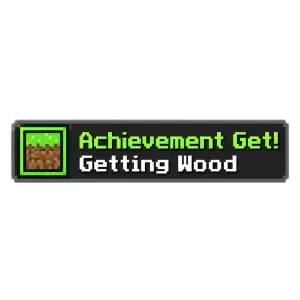
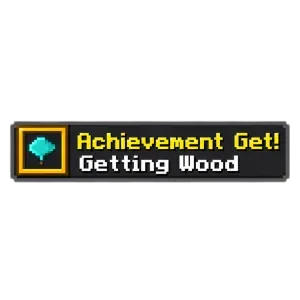
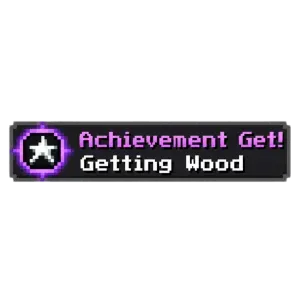
Every example is a complete Minecraft toast. Pair the diamond icon with the Achievement Get! title and the preview redraws live. Each result is a crisp PNG you can save to your device.
What is a Minecraft Achievement Generator?
A Minecraft achievement generator makes a custom version of the notification that appears when a player unlocks an advancement. You write a title and a description, add an item icon, set the frame color, then generate the card and export it as a PNG.
The resulting images are shareable on Discord and can go into YouTube thumbnails or stream overlays. Each one is only a picture, so nothing changes in your world.
What This Generator Gives You
Create a Minecraft achievement pop-up with your own title and description. Pick an icon, preview it in 3D, then download it as a PNG.
Custom Wording and Classic Shortcuts
The title field has a character limit of 30, the description allows 34, and each counter shows the current length. Click any of 16 classic presets to fill the description and icon at once.
Pixel Art and Border Colors
The icon grid holds 16 pixel-art icons, including a Diamond Sword and TNT. Ten frame colors, such as green, yellow and purple, tint the frame border and give the title a lighter shade, and a custom picker handles any color.
Live Preview You Can Tilt and Zoom
The toast preview updates live and sways in 3D on its own. Drag to tilt it in 3D or pan it in 2D, zoom from 20% to 400% with the wheel or slider, and switch italic title or frame glow on or off.
Saving Your Card in Several Formats
Download a 4× PNG, which starts at 640×128 and widens with longer text, or an 8× HD version. Both PNG sizes keep sharp edges. Copy the image to the clipboard in supported browsers, or save the settings as JSON.
How to Use the Minecraft Achievement Builder
Enter a title and description, pick an icon and frame color, then preview the advancement toast and download it as a PNG.
1. Write the Title and Description
Enter your title text first, up to 30 characters, then add a description of up to 34. It appears under the title as body text, and live counters show how much room is left.
2. Pick an Icon or Preset
Click a tile in the icon picker to select one of 16 pixel-art graphics, such as Diamond, Emerald, Chest or Nether Star. Classic Presets pair a ready-made description with a matching icon in one click.
3. Set the Frame Color
Pick one of ten colors from the dropdown beside Frame, including Achievement Green, Challenge Purple and Lapis Blue, or use the custom color picker. The frame border takes that color, and the title gets a lighter shade of it.
4. Adjust the Toggles
Two toggles in the main panel shape the look. Italic Title slants the title. Frame Glow puts a halo around the icon frame. Both carry into the downloaded PNG, but the 2D and 3D buttons only change the preview.
5. Inspect the Preview
In 3D view the card sways on its own, and you can drag it to tilt. Scroll to zoom, or in 2D view drag to pan. The reset icon restores the starting view, and the 2D button gives a flat preview.
6. Download or Copy the Image
Click Download as PNG for a 4x image, or HD PNG for 8x. Copy PNG puts it on your clipboard in supported browsers, for chats or forums, while JSON and Details save the settings and a text summary.
Common Settings & Popular Presets
Frame color and icon set the look of your achievement popup. These nine rows cover the other settings and presets worth knowing about.
| Option | Best For | Pro Tip |
|---|---|---|
| Achievement Green frame | Early-game milestones, using the default pairing of the grass block icon and Getting Wood text | Open the Frame list to preview nine other named colors, such as Challenge Purple, before reaching for a custom one |
| Custom color picker | A shade outside the built-in list, such as a server’s brand color | Pick the type first, since choosing Goal or Challenge resets the frame color. Very dark shades can make the title hard to read |
| Frame Glow | A soft glowing edge around the icon frame | Switch it off for a plainer frame in the downloaded image |
| Italic Title | A slanted title that stands apart from the white description | Compare both styles in the live preview, and turn it off if you’d rather have upright lettering |
| 3D view button | Checking the frame, glow and icon from a tilted angle while the card sways on its own | It only affects the on-screen preview. The PNG you download stays flat, and the 2D button gives a flat preview |
| Title and description length | Short wording, since the top line is capped at 30 characters and the bottom line at 34 | Watch the counters beside each label, because a long title or description makes the card noticeably wider |
| Icon grid | Matching the artwork to the story, such as a Diamond Sword for combat or a Creeper Head for a near miss | Hover over a tile to see its name, or use Upload custom icon if none of the 16 fit. Your image is resized to 16×16 |
| Classic Presets | Quick starts from familiar names like Benchmarking, Monster Hunter or The Cake Is a Lie | A preset fills in the description and swaps the icon but leaves the title alone, so edit the title afterward |
| HD PNG (8x) | Larger thumbnails and stream overlay art | The 4x PNG is the lighter file for forum signatures, and both sizes keep crisp pixel edges |
🏆Pro Tips to Build an Achievement in Minecraft
Write a short custom title, 30 characters max, then a description, 34 max. The card widens for longer wording, so brevity keeps it compact.
Choose a frame color that signals difficulty. Task Yellow suits early steps, while Challenge Purple is better saved for hard challenges. The Goal and Challenge buttons apply these colors for you.
Match the icon to the theme. A Crafting Table suits crafting milestones, an Ender Pearl signals travel, and a Golden Apple hints at food. Upload a custom icon if none of the 16 fit.
Use the colored title as a label and the white description for the achievement itself, much like vanilla toasts do with Diamonds! or Taking Inventory. The title uses a lighter shade of the frame color.
Click 2D and zoom in to proofread. The flat preview draws crisp pixels, which makes typos and low-contrast title colors easy to catch. Zoom and view only change the preview, not the download.
Download the 8x HD PNG for thumbnail artwork or anything you’ll scale later. The 4x file is plenty for Discord messages.
In-Game Workflow
Create a toast that resembles the in-game popup, then download it as a PNG.
Write the Title and Description
Fill in the title (30 characters max) and description (34 max) fields, watching the counters. Leave one empty and a default appears instead: Achievement Get! or Minecraft.
Pick an Icon or Preset
The icon grid has 16 pixel icons, including a Cookie and an Iron Pickaxe. A Classic Preset fills the description and swaps the icon instantly, but leaves the title alone.
Choose the Frame Color and Effects
Pick one of ten frame colors or a custom shade. The frame border uses it, and the title gets a lighter tint of it. Italic Title and Frame Glow toggles are optional.
Preview and Download
Scroll to zoom, drag to tilt the 3D preview or pan in 2D, then download a 4× or 8× PNG. Exported files keep crisp pixel edges.
Common Mistakes
Check these six slips before downloading, since each one shows up in the finished image.
Pushing the Title and Description to Their Limits
The title takes up to 30 characters and the description 34. Aim shorter, since longer text stretches the card wider than a real toast.
Expecting a Preset to Rewrite the Title
A classic preset fills in the description and swaps the icon. The title stays untouched, so reword it afterward if it no longer fits.
Looking for Icons the Grid Doesn’t Have
The picker holds 16 built-in pixel icons, and none is a player head. Use Upload custom icon for anything else. Your image is resized to 16×16.
Choosing a Frame Color That Disappears
Very dark custom colors hide the title, since its text uses a lightened frame color on a dark card. Choose a brighter shade.
Downloading at the Wrong Size
Enlarging a 4x PNG can blur it. For large displays or stream overlays, download the HD PNG at 8x, which starts at 1280×256.
Mistaking the Image for an In-Game Unlock
The PNG is only an image. The Advancement Datapack download uses an impossible trigger, so it never unlocks by itself. Grant it with a command or add your own criteria.
Conclusion
The Minecraft achievement maker turns an editable title and description, a pixel icon and a frame color into a toast-style pop-up graphic. Preview it in 3D, then use the export options to download PNG files at 4x or 8x, copy the result to your clipboard, or save the settings as JSON.
FAQs - Minecraft Achievement Generator
What’s the difference between an Achievement and an Advancement?
Java Edition replaced its original achievements with advancements in 1.12, which use a tree-based structure with tabs like Husbandry, while Bedrock still has achievements.
Does this create a real in-game achievement/advancement?
Not by itself. The PNG is only an image. The Advancement Datapack download uses an impossible trigger, so grant it with a command.
Can I use these images for thumbnails, stream overlays, or YouTube?
Yes. The PNG downloads suit thumbnails, stream overlays, YouTube videos and Twitter posts. Choose the 8x HD PNG for images that will be enlarged.
What is the achievement toast format?
It follows the in-game GUI look, with a dark background, left-side icon and colored title above white text. The 4x PNG starts at 640×128 pixels.
Can the icon be a player head?
Not built in. The grid has 16 pixel icons, but Upload custom icon accepts your own image, resized to 16×16, such as a head.
Does it work for Java and Bedrock?
Yes. Because the download is a plain PNG image, it works with Java and Bedrock content alike, including screenshots and videos.
How can I use the achievement in forums?
Download the PNG image file, then attach it to your forum reply or upload it to an image host and insert the link.
Is there a way to create your own achievements?
Yes. Enter your own title up to 30 characters and description up to 34, then choose an icon and frame color and download the PNG.