
Minecraft Seed Generator
Generate a new seed for Minecraft in one click, or enter a seed as a number or text. The map viewer lets you preview biomes and structures in 2D or 3D for a chosen Java version. Export the results as JSON, CSV or TXT. It is part of our Random & Seed collection.
Current Seed
Paste into the “Seed” field when creating a world. Text seeds are converted the same way Minecraft does it.
Seed Stats
Downloads
PNG exports the current view. SVG, JSON, CSV and Seed Info export the map and structures. .schematic and .litematic build the central 64×64 terrain of this preview.
Structures
Click a structure to copy its /tp command. Positions are an approximate preview — confirm exact spots in-game or with Chunkbase.
Seed History
Related Generators
Beyond creating custom potions with our Free Minecraft Potion Generator, you can also discover random items with the Minecraft Random Item Generator, find random blocks using the Minecraft Random Block Generator, or explore new worlds with the Minecraft Random Seed Generator.
Example Seed Results
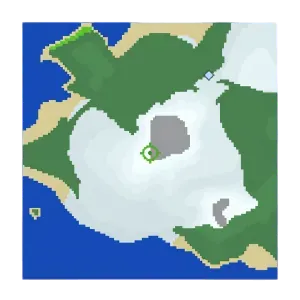
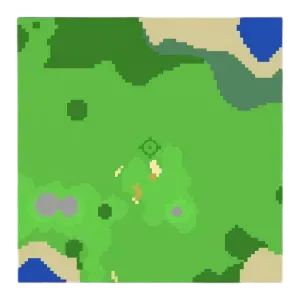
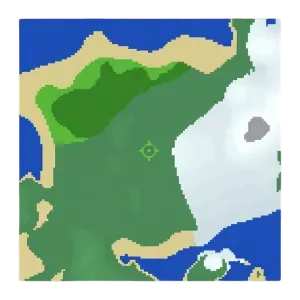
Each result opens in 3D, showing estimated terrain across the surrounding area. A side panel gives coordinates for any nearby villages, monuments and mansions, and in 2D you can toggle a slime chunks overlay.
What is a Minecraft Seed Generator?
A Minecraft seed generator is a browser tool that creates a random seed and previews the world it produces. Press the Random button or enter a number or text, and the tool draws the terrain, biomes, and structures in a 2D map or an isometric 3D view.
Typed text is converted to a number, so the same words give the same seed. The preview is a simulated approximation, so verify exact structure positions in the game.
What This Generator Gives You
Generate a random seed or type your own, then preview the world as a 2D map or 3D terrain with spawn and structure locations.
Number or Text Input
Type a numeric value or text seed into the box, or press the dice button to randomize seed. Plain 64-bit numbers are used as given, while text goes through the Java hash.
2D Map and 3D Terrain Modes
Switch between a flat 2D map and an isometric 3D scene, and toggle auto-rotate with the corner button. Drag to pan in 2D or rotate in 3D, scroll to zoom, or hover on the 2D map to read the biome.
World Type, Size and Overlays
Choose a Java version from 1.16 to 1.21, then pick Default, Large Biomes, Amplified or Superflat. Map size goes from 64 to 256 blocks, and grid lines or slime chunks can be switched on.
Stats, Coordinates and Downloads
The stats panel shows spawn, its biome and the structure count. Each structure entry adds estimated coordinates, distance from spawn and a click-to-copy /tp line. Download PNG, JSON, CSV or TXT files.
How to Use the Minecraft Seed Builder
Generate an interactive seed map in six steps: add a seed, choose a version and world type, inspect the terrain, then download the results.
1. Add a Seed
Paste a seed or type a word into the box and submit it. Text seeds are case-sensitive and hashed into a number, which the Current Seed box displays. The dice button rolls a random seed.
2. Pick a Version and World Type
Choose a Java release from 1.16 to 1.21 in the version menu. The world type selector offers Default, Amplified, Superflat and the Large Biomes world type. Changing either one redraws the map.
3. Adjust Map Size and Zoom
Drag the size slider between 64 and 256 blocks, in steps of 32. The default is 128 × 128. Use the zoom slider from 40% to 400% to step back or inspect closely.
4. Switch Between 3D and 2D
Switch between 3D terrain and the flat 2D biome and structure map. In 2D, hover to read coordinates and biome, click to drop a waypoint, and toggle grid lines or slime chunks. Drag to pan.
5. Check Spawn and Structures
The stats panel gives spawn coordinates and starting biome. The Structures panel sorts villages, pillager outposts, woodland mansions and other finds by distance from spawn, and clicking an entry copies a /tp teleport line.
6. Copy and Download Results
Use the copy button for stats or structures, or export a PNG, CSV or JSON file. Seed Info TXT gives a plain-text summary. The preview is simulated, so confirm coordinates in-game before you build.
Common Settings & Popular Presets
Each setting changes what the preview shows. Use these combinations as starting points for survival play, creative building, and speedrun practice.
| Option | Best For | Pro Tip |
|---|---|---|
| Number seed | Previewing a seed posted on Reddit or Discord | Whole numbers within the Java 64-bit range load exactly as typed, and negative seeds work too. Numbers outside the range are rejected with an out-of-range message, and Bedrock mode accepts 32-bit values only. |
| Text seed | A memorable word or phrase in place of digits | The tool hashes text into a number and shows it in the Current Seed box, with the original text noted in Seed Stats. Capital letters change the result, so type it the same way every time. |
| Random seed button | Getting a one-click new seed when you have no target in mind | Copy the number once a map looks right, because the next click replaces it, or restore it later from Seed History. Clicking the 3D preview or pressing Space also rolls a new seed. |
| Version | Checking a seed against the Java release you actually play | Choose the correct version first, since 1.18 changed world generation and the same seed can give a different world afterward. In this preview, Ancient Cities appear from 1.19 and Trial Chambers from 1.21. |
| Large Biomes | Sprawling regions and long exploration trips | Raise Map Size to 256 first, because at this scale the default 128-block view often shows only a biome or two. |
| Amplified | Distinctive terrain with towering peaks for builders | Switch to 3D and drag the scene, or use the Left and Right arrow keys, to study the peaks from all sides. |
| Map Size | Surveying a wider area around spawn | The 3D view draws only the center 48 by 48 blocks, so switch to 2D Map to see the full area. |
| Structures | Spotting villages and other structures near spawn for route planning | Click a structure in the list to copy it as a /tp teleport. Check the spot in-game afterward, since the preview is an approximation. |
| Slime Chunks | Choosing a site for a slime farm | The overlay works in Java Edition only and draws only on the 2D Map, so switch views if you don’t see any green squares. |
🌱Pro Tips to Build a Seed in Minecraft
Choose the version first, because major updates can alter what a seed produces. When sharing seeds, tell friends to use the same version.
Read the estimated spawn biome in the stats panel, then scan the 2D seed map around it. Balanced biomes nearby give survival players easy resources, but the preview is simulated, so confirm in-game.
Scan the structure panel for a village or another structure near spawn. Distances are measured from the estimated starting point, so closer entries mean less travel.
Click the 2D map to drop a waypoint on a target spot. The JSON download keeps that waypoint with the spawn and structure coordinates. Changing the seed, version or world type clears it.
A text value can serve as a seed. Load it, click Copy to grab the converted number from the Current Seed box, then paste it into the in-game Seed field.
A seed gets fixed at creation, so an existing world can’t swap it for another. After joining, type /seed in chat to check it.
In-Game Workflow
Four steps take a seed from the map into a fresh singleplayer world.
Pick Your Seed and Version
Type a number or phrase and press Load, or roll a random seed. Any words converted to numbers appear in the Current Seed box. Then choose a Java version.
Preview the Terrain and Spawn
Zoom the interactive map in 2D or 3D, pan in 2D or rotate in 3D, then read the spawn biome. Terrain and structure coordinates are simulated, so treat the listed distances as estimates.
Paste It Into Minecraft
Copy the seed, choose Create New World, and paste it into the Seed for World Generator field. Older releases hide it behind More World Options.
Check the Seed and Teleport
Press the T key and run /seed to confirm the world seed. Click a structure entry to copy a /tp command. /tp needs cheats enabled, and /seed needs operator permission on servers.
Common Mistakes
Most bad previews trace back to a handful of seed entry and setting errors.
Typing Words Instead of Numbers
Typed text becomes a numeric seed through case-sensitive hashing, so “Castle” and “castle” give unrelated numbers. Keep capitalization exact, press Load, and check the Current Seed box.
Assuming Java Results Apply Everywhere
This preview always follows Java rules, even when Bedrock is selected, which only limits the seed to 32 bits. A seed typed into the Bedrock world-create screen will generate differently, so coordinates won’t line up.
Ignoring the Version and World Type Menus
Version starts at 1.21.x and World at Default. A wrong version or world type can reshape terrain, so choose what your own world uses.
Expecting Structures Beyond the Map
The map spans 256 blocks at most, so structures far from origin won’t appear, and the list shows only the 40 nearest to spawn. Raise Map Size before concluding a seed has missing structures.
Treating the Preview as Exact
The terrain is a simulated approximation, so coastlines, biome borders and spawn estimates may be off in-game. Confirm key coordinates before you build.
Losing a Seed Worth Keeping
Each random roll replaces the current seed, and Seed History keeps only the last 20 in your browser. Copy it from Current Seed or download the TXT first, since clearing history or browser data erases them.
Conclusion
This minecraft seed maker rolls a random seed or accepts your own number or text, then previews the landscape in 2D or 3D with spawn coordinates, structure positions, and an optional waypoint. Export PNG, JSON, CSV, or TXT files. Since the preview is simulated, confirm results in-game before building or sharing a world.
FAQs - Minecraft Seed Generator
What is a seed?
A seed is a unique number or text string that initializes world generation. Players who share seeds on matching versions always get the same world.
What if I leave the seed blank?
A blank field isn’t an error, but Load only shows “Type a seed first.” Press Generate Seed instead to get a random seed.
Can I enter words as seeds?
Yes, you can enter words as seeds. Java-style hashing turns text into a number, so identical wording gives the same map. Capital letters matter.
Do seeds work on servers?
Yes, seeds work on multiplayer servers. The server builds the world from its level-seed setting, so all players who join explore the same terrain.
How many possible worlds exist?
Java’s 64-bit seeds allow about 18.4 quintillion possible worlds, or 2^64, while Bedrock’s 32-bit seeds allow roughly 4.3 billion, or 2^32.
How accurate is it?
The preview is a simulated approximation, so accuracy has known limits. Expect some mismatch with the real game, and confirm exact structure coordinates in-game.
What’s the difference between Java and Bedrock seed formats?
Java seeds are 64-bit numbers, while Bedrock seeds are 32-bit integers. That difference in seed formats means large Java seeds can fall outside Bedrock’s range.
Do I need to create an account to use the Minecraft Seed Generator?
No account is required. Open the page, set a seed, and download the map image, structure coordinates or seed info free of charge.