
Minecraft Gradient Generator
Pick a start colour and an end colour, and this Minecraft Gradient Generator blends them across a wall of blocks in RGB or HSV. Turn on colour matching to snap each step to a real block palette, then check the live preview before building. It is part of our Text & Font collection.
/fill Commands
Stand where the gradient should start and paste into chat or a command block with cheats enabled. Each line fills one step.
Stats
Downloads
PNG exports the wall at high resolution. SVG is a flat block map. JSON and CSV hold block coordinates and ready-to-paste /fill commands. Text is a printable build guide. .schematic and .litematic are 1-block-thick walls with exact blocks.
Gradient Guide
Related Generators
Beyond creating custom Minecraft Potion Generator, you can also customize in-game messages with the Minecraft Text Generator, style your text with the Minecraft Font Generator, or track in-game milestones using the Minecraft Achievement Generator.
Example Gradient Results
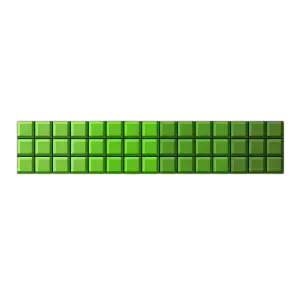
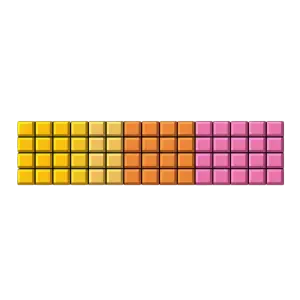
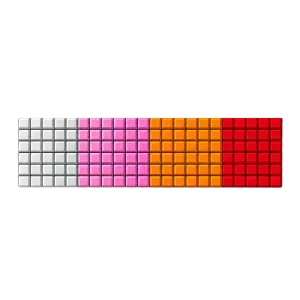
These examples show how two hex codes become a gradient built from real blocks. The default green pair spans 16 steps and 3 rows, and the wall preview shows the result before you build.
What is a Minecraft Gradient Generator?
A Minecraft gradient generator builds a smooth RGB gradient between two colours and turns it into a strip of blocks. You pick colours for each end, set the number of steps, and the tool can match block colours to concrete, wool, terracotta or concrete powder. It suits walls and floors in survival builds.
A 3D wall-of-blocks preview or a flat 2D grid shows the fade before you build. Export the block list or commands, then use them for houses and castles.
What This Generator Gives You
Choose a start and end colour, and this generator lays out block gradients you can build in Minecraft, with a live preview and downloadable files.
Blending and Block Matching
Two pickers, or a block list, set colours for the first and last step, and a swap button flips them. The blend modes are RGB, HSV and LAB, with Linear, Smooth, Ease in and Ease out curves, and colour matching snaps each step to the nearest concrete, wool, terracotta or concrete powder block.
Length, Rows and Direction
Length ranges from 1 to 256 steps, and you can stack up to 10 rows for a thicker band. The vertical option turns the pattern into gradient walls, with shades changing along the height, while mirror mode runs the colours from A to B and back to A.
Switchable 2D and 3D Views
The preview modes cover an isometric 3D wall with rotation, zoom and panning, plus a flat 2D grid. Hovering a block shows its step, hex value and name, and clicking marks it placed while building.
Block Totals and Exports
Stats show the block total in stacks of 64, and the Gradient Guide lists each step's block name. Downloads cover PNG, SVG and CSV block coordinates, plus JSON and TXT files with /fill commands to paste in-game. Schematic and litematic files are also available for importing the wall.
How to Use the Minecraft Gradient Maker
Choose a start and end color, set the length and rows, and the maker generates a block gradient you can preview in 3D or 2D.
1. Select the From and To Colors
Click the From and To swatches to open the color pickers, or choose a color from the block dropdown beside each one. Each hex code updates with your pick, and clicking it copies the value. Press the swap button to exchange the two colors.
2. Set Length, Rows, and Direction
Length sets the number of color steps, from 1 to 256, and Rows sets the blocks per step, from 1 to 10. Choose Vertical instead of Horizontal to run the colors up and down instead of across.
3. Choose a Blend Mode
The generator interpolates between your two colors in RGB by default. Switching Blend Mode to HSV blends through hue instead, so a pure red to pure green run passes through yellow rather than olive. LAB is also available, and the Curve menu and Mirror toggle reshape the blend further.
4. Match Colors to Real Blocks
With Match Blocks on, each step snaps to the closest block in the palette you select: All Blocks, Concrete, Wool, Terracotta, or Concrete Powder. Turn it off for smooth colors with approximate block suggestions.
5. Preview and Track Placement
Switch the preview between 3D and 2D, then zoom or drag to pan. In 3D, the Rotation slider turns the wall and stops auto-rotate. Click blocks to mark them placed while you build, though changing length, rows, or direction clears the marks.
6. Use the Guide and Download
Check the Stats panel for the block total, then follow the Gradient Guide step by step. Its Copy button includes /fill commands, and you can save PNG, SVG, JSON, CSV, TXT, .schematic, or .litematic files.
Common Settings & Popular Presets
Set the length and block palette first, then tune rows and blend. These starting presets cover the setups most gradient builds begin with.
| Option | Best For | Pro Tip |
|---|---|---|
| Length 16 | The default size, good for a compact accent wall or banner | Check the block total in Stats before you gather materials, and use its material list for per-block counts, which show stacks once a block reaches 64 |
| Length 64 to 256 | Long skylines and wide murals | The All Blocks palette holds only 64 colors, so very long runs reuse the same block across neighboring steps. Colors Used in Stats shows how many are unique |
| Rows 1 | A single-line fade for a path, border, or trim | The block count equals the length with one row, which makes it a quick way to test colors |
| Rows 5 to 10 | Thick walls and tall banners | Every extra row adds another full length of blocks, so raise it gradually and watch the stacks figure |
| RGB blend | Related colors, like the default light green fading to dark green | RGB blends straight between the two colors, so opposite hues can turn gray around the middle |
| HSV blend | Contrasting hues, such as red to blue | HSV travels the short way around the hue wheel. Switch between RGB and HSV and compare the live previews |
| Match Blocks on | Real builds, since each step automatically snaps to the nearest block color | Pick All Blocks, or choose Concrete, Wool, Terracotta, or Concrete Powder to stay in one family. The palette menu shows only while matching is on |
| Match Blocks off | Previewing the smooth blend before choosing blocks | The Gradient Guide marks block names with ≈, so treat them as nearest suggestions |
| Vertical direction | Towers, pillars, and any fade that runs along height | Length becomes height and Rows becomes width, so 32 and 3 builds a column 32 blocks tall and 3 wide |
🌈Pro Tips to Build a Gradient in Minecraft
Pick contrasting end colors so the gradient can stand out. If the RGB blend turns dull midway, try HSV, which sweeps through the hues instead.
With Match Blocks on, pick one palette like Concrete or Wool so every step shares a texture. All Blocks mixes materials and can look busy.
Check the Colors Used stat. With Match Blocks on, a number lower than your length means some steps share a block (Mirror also repeats blocks on purpose), so extra length makes the wall longer but not smoother.
Copy the /fill Commands and run them at your starting spot with cheats on. Each line fills one step. The Gradient Guide's Copy button adds the step list above the commands, so use the Commands panel for a clean paste.
Switch to Vertical for towers and tall walls, then read the Blocks stat. Once the total reaches 64, it splits into 64-block stacks plus a remainder, and the material list shows the count per block.
Turn off Grid Lines and Bevel to see plain color, then use the Rotation slider in 3D to turn the wall. Click blocks as you place them to track progress, but changing length, rows, or direction clears the marks.
In-Game Workflow
Use the generated gradient as a block-by-block plan for your Minecraft build.
Set the Colors and Direction
Pick the From and To colors, then set a length from 1 to 256 and 1 to 10 rows. Switch to Vertical to stack the steps upward, with the first color at the bottom.
Match Blocks and Check Stacks
Keep Match Blocks on and pick a palette like Concrete or Wool. Once the total reaches 64, the Stats panel splits it into stacks of 64 plus leftovers, and the material list counts each block.
Follow the Guide
Follow the Gradient Guide’s block names, or copy the /fill commands if cheats are enabled. Stand where the gradient should start, since each command is relative to your position.
Mark Progress and Export
Click blocks to mark them placed. Changing length, rows or direction clears the marks. Download PNG, SVG, JSON, CSV, a text guide, or a .schematic or .litematic file for reference.
Common Mistakes
Most gradient problems trace back to a handful of settings worth checking first.
Turning Match Blocks Off and Expecting Exact Blocks
With Match Blocks off, the preview shows smooth colors no block can reproduce. The guide lists only the nearest block per step, marked as approximate, and the /fill commands use those same nearest blocks.
Mixing Every Palette Family
The default All Blocks palette mixes concrete, wool, terracotta and powder, so textures can jump between steps. Pick one family from the palette menu for a cleaner wall.
Sticking With RGB for Distant Colors
RGB blends in a straight line, so red to green passes through dull olive. HSV sweeps the hue instead, giving brighter in-between steps, and LAB is a third mode worth comparing.
Choosing a Length Without Checking Stats
Long gradients on one palette reuse blocks, since each family has only 16 colors and All Blocks has 64. With Match Blocks on, compare Colors Used with the step count, and check the Blocks total and material list before gathering.
Resetting Marks by Changing Settings
Changing length, rows or direction clears every placed mark. Changing colors, blend mode or palette keeps marks, but the blocks beneath them change, so settle everything first.
Exporting the Wrong File Type
A PNG or SVG only shows the gradient, and CSV holds block coordinates without commands. For /fill commands, use the Copy button or download the JSON or Text / Cmds file.
Conclusion
This free minecraft gradient maker runs in your browser and turns two colors into a stepped block gradient that can match concrete, wool, terracotta or concrete powder. The stats panel shows block and stack totals, and the Gradient Guide lists each step. Export a PNG, SVG, JSON, CSV or text guide with /fill commands.
FAQs - Minecraft Gradient Generator
How do I make gradient text in Minecraft?
Give each character its own full RGB colour code in section-x hex format, which works in Java 1.16+. This tool builds block gradients instead.
Where can I use hex gradient text?
Hex gradient text works wherever a server or its plugins read formatting codes on 1.16+, including MOTDs, scoreboard titles, item names, books, signs and configs.
What is the section-x hex format?
It’s a section sign followed by x, then six hex digits each prefixed by a section sign, giving an exact RGB colour in 1.16+.
Does it work for a server MOTD?
Not directly: this builds block gradients. A server MOTD shows colours once its section sign is written as a unicode escape in the motd value.
How to make a 3 color gradient?
This generator blends two colours, so build a three-stop gradient in two runs: start to middle, then middle to finish. Keep rows and direction the same, and stand right after the first run before pasting the second.
Which color gradient is best?
No single gradient wins. Similar hues, like light to dark green, blend smoothly in RGB, while HSV takes the short way around the hue wheel for vivid shifts. LAB is a third mode worth comparing.
Does this work for Minecraft Bedrock and Java?
Mostly. The /fill commands and block guide use standard block names, so you can follow them in Java 1.13+ and recent Bedrock versions. The .schematic and .litematic downloads are Java only.
Do I need to create an account to use the Minecraft Gradient Generator?
No. There’s no account, login or registration step, so you can pick colours, preview the gradient and download PNG, SVG, JSON, CSV, text, .schematic or .litematic files.