
Minecraft Random Seed Generator
Generate a random seed for Minecraft with this browser-based generator. It uses cryptographically secure randomness, supports Java 64-bit and Bedrock 32-bit seeds, and shows a stylized terrain preview. You can also enter your own seed, then export results as CSV, JSON, or TXT. It is part of our Random & Seed collection.
Current Seed
Paste into the “Seed” field when creating a world. Text seeds are converted the same way Minecraft does it.
Seed Stats
Downloads
PNG exports the current view. SVG, .schematic and .litematic build the focused seed’s 64×64 preview terrain. JSON, CSV and text export the whole roll.
Seed History
Related Generators
Beyond creating potions with our Free Minecraft Potion Generator, you can also discover random items with the Minecraft Random Item Generator, find random blocks using the Minecraft Random Block Generator, or explore new worlds with the Minecraft Seed Generator.
Example Random Seed Results
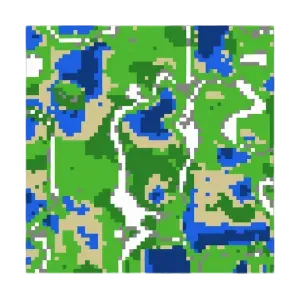
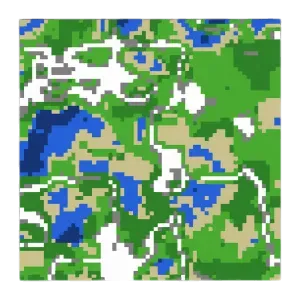
Each result shows a seed, its digit count, and compatibility across both editions. A stylized preview gives land and water totals, plus how many biomes appear, but it’s illustrative, so check the real world in-game.
What is a Minecraft Random Seed Generator?
A Minecraft random seed generator produces a new seed with one click. You set the digit count, from 1 to 19, and decide whether negative values are allowed. A Java seed is a 64-bit signed integer, while the Bedrock switch limits each result to a 32-bit signed integer.
Each seed gets a stylized 2D or 3D sketch, which isn’t the real terrain Minecraft would generate from it. You can export seed data as JSON or CSV.
What This Generator Gives You
Find a random Minecraft seed, choose its length and edition, and see a stylized terrain preview. Digits come from a cryptographically secure random source.
Length, Sign, and Edition Controls
Choose a length from 1 to 19 digits and decide whether negative seeds are allowed. The Bedrock edition option caps the output at a 32-bit range of up to ten digits, while Java stays 64-bit.
A Stylized 2D and 3D Preview
Each seed renders as a stylized grid of 4,096 blocks, viewable in flat 2D with pan or rotatable 3D, with zoom in both views. Six themes, from Overworld to Nether Wastes, change the palette.
Stats and Seed History
The stats panel shows digit count, Java and Bedrock compatibility, and preview totals for biomes, land blocks, and water blocks. A history list stored locally in your browser lets you copy or reload recent seeds.
Download Formats
Download the current view as a PNG, or the flat map as an SVG. JSON holds the seeds, preview data, and history with a timestamp, while CSV lists each seed with its digits, sign, and Java and Bedrock compatibility. TXT exports a character grid, and .schematic and .litematic files export the 64×64 preview terrain.
How to Use the Minecraft Random Seed Finder
Generate instant random seeds for Java and Bedrock editions, preview a quick map, then copy your favorite. Here’s how it works.
1. Choose Your Edition
Java is the default and uses 64-bit integers, so seeds can run to 19 digits. If you play Bedrock, choose Bedrock Edition from the Edition dropdown in the Current Seed panel. That mode uses 32-bit integers and caps seeds at 10 digits.
2. Set Seed Length and Sign
Move the Seed Length slider or type a length from 1 to 19 digits. Allow Negative is on by default, so turn it off for positive seeds only. Negative seeds are accepted in both editions.
3. Generate a Seed
Press Generate Seed or click the preview for a new random seed. With the preview focused, the Space key works too. Seeds per Roll can make up to 16 at once. The Stats panel shows the digit count and whether Bedrock accepts that seed.
4. Read the Map Preview
Scroll to zoom in both views. In 3D, drag to rotate the map, and in 2D, drag to pan. Switch to 2D and hover to see coordinates and biome labels. This map preview is stylized and won’t mirror in-game terrain.
5. Preview Your Own Seed
Type a seed into the Load Seed box and press Load to rebuild the map. It takes a number, with an optional minus sign, or any text, which is converted to a number the way Minecraft does it. A number outside the valid range for the selected edition is flagged.
6. Copy, Export and Revisit
Use the Copy or Copy Seed button to copy a seed, or click the seed box to select it. Seed History keeps your latest 20 and restores any previous seed. Downloads include PNG, SVG, JSON, CSV, Text Map, .schematic and .litematic.
Common Settings & Popular Presets
Each row below is a preset built from the tool’s configuration options, along with one practical tip for using it.
| Option | Best For | Pro Tip |
|---|---|---|
| Java Edition (64-bit) | Playing Java Edition on PC, Mac or Linux | Keep Java Edition (64-bit) selected in the Edition dropdown so the Seed Length slider can run up to 19 digits |
| Bedrock Edition (32-bit) | Bedrock Edition on consoles, mobile or Windows 10 | Select it in the Edition dropdown before you generate, since the slider then stops at 10 digits. The Stats panel also shows whether a seed fits Bedrock |
| Short seed length (4–6 digits) | Seeds that are easy to type or read aloud | Drag the Seed Length slider or type a digit count, then click Generate Random Seed |
| Allow Negative on | Seed hunting across both signs for the widest pool of seeds | Turn it off for positive seeds only. The Stats panel labels the sign of the current seed |
| Type a seed to preview | Checking a seed you got from a friend or a video | Type a number with an optional minus sign into the Load Seed box, then press Enter or click Load. Any text is converted to a number, and numbers outside the selected edition’s range are rejected |
| 3D View with Auto-Rotate | Judging terrain height and ridges from an angle | Drag to rotate and scroll to zoom. With the preview focused, press Shift + Left or Right Arrow to turn the view 45 degrees. Auto-rotate only runs in 3D, and the rotate button toggles it |
| 2D Map with Grid Lines | Reading the layout flat from above, one cell at a time | Hover over a cell to read its x and z position, height and biome label. The Grid Lines toggle outlines each cell once you zoom in. Treat the preview as a stylized sample, not the real terrain |
| Theme and tint | Recoloring the preview as an Overworld, lush forest, desert, snowy, badlands or Nether scene | Colors only change how the preview looks, so the seed and terrain shape stay the same. Picking a theme resets a custom tint |
| Seed History and downloads | Keeping seeds you like and saving the preview or history as PNG, SVG, JSON, CSV, a text map, or .schematic and .litematic files | Click an entry to restore that seed, or press Copy to copy the list. The panel keeps the 20 most recent seeds, and Clear empties it |
🎲Pro Tips to Build a Random Seed in Minecraft
Pick the edition first in the Edition dropdown, because Java and Bedrock use different integer sizes. Bedrock’s 32-bit range stops at 10 digits, while 64-bit Java allows 19.
Keep Allow Negative on and raise Seed Length for more variety. Negative seeds are equally random and roughly double the pool of possible seeds.
Remember that the preview is stylized and not the real terrain. Rotate it for a quick look, but test several seeds in-game before committing.
Use the Copy or Copy Seed button when you see a good seed. Click the preview, or press Space with it focused, to roll a new one, but Seed History keeps only your last 20.
Preview a seed you already own through the Load Seed box. It takes whole numbers with an optional minus sign, or any text, which is converted to a number. Stats shows Bedrock compatibility.
Note the game version beside each seed you keep, since Seed History does not save it. Major updates such as 1.18 reshaped terrain, so the same seed can look different later.
In-Game Workflow
Generate a seed, copy it, and carry it into a new world in Minecraft.
Generate and Copy a Seed
Press Generate Seed, then press Copy Seed to copy its value. Clicking the seed box only selects the text. The 3D preview is stylized, so real terrain will look different.
Match the Edition
Pick the edition you play from the Edition dropdown. Bedrock Edition caps seeds at ten digits, and Bedrock and Java can turn one seed into a different world.
Paste It Into World Creation
Choose Create New World, paste the seed into the Seed field, then create the world. In Bedrock, that field sits under Advanced.
Reload Recent Seeds
Recent seeds stay in Seed History (the latest 20, saved in your browser), and one click restores a seed’s preview. Export CSV or JSON to keep your current roll and history.
Common Mistakes
Most seed mistakes come from a few assumptions you can check before creating a world.
Overlooking the Edition Dropdown
Java seeds run up to 19 digits, but Bedrock takes a signed integer of 10 digits at most. Choose Bedrock Edition (32-bit) in the Edition dropdown before generating.
Expecting Text Seeds to Match Bedrock
The Load Seed box accepts numbers or any text. Text is converted to a number the Java way, so it may not give the same world in Bedrock. A number outside the selected edition’s range is rejected.
Treating the Preview as Real Terrain
The map is a stylized visual preview, so biomes, shorelines and structures won’t match what the game generates. Check any seed in-game before you build.
Expecting a Seed Finder
This random generator only rolls numbers. It can’t search for seeds with villages, ocean monuments or specific biomes, so use a dedicated finder for those.
Ignoring Edition and Version
Seeds only recreate the same world on the same edition and version. Generation algorithms differ between Java and Bedrock, and updates can alter terrain.
Losing a Seed Worth Keeping
History is saved in this browser on one device and holds up to 20 seeds. Copy any seed worth keeping, or export a CSV or JSON file.
Conclusion
This Minecraft random seed finder creates Java and Bedrock seeds in one click and previews each as a stylized 3D or 2D map. Copy the value or export PNG, SVG, JSON, CSV, and ASCII map files. Send the seed to friends on the matching edition so they can recreate a world in-game.
FAQs - Minecraft Random Seed Generator
What is a seed in minecraft?
A seed is a number or text value that initializes world generation. Players who share seeds on the same version get identical terrain.
How do I find my world’s seed?
In Java, press T and enter /seed in chat. Servers require operator permission, so ask the owner. Bedrock lists it under world settings.
Will the same seed always give the same world?
Yes, on the same edition and same version. Updates like the 1.18 terrain overhaul change generation, but already generated chunks keep their terrain.
Can I use text as a seed?
Yes. Minecraft converts text to numbers with a hash, so you can enter text directly on the world-creation screen. Text seeds are case-sensitive.
What makes a good seed?
Survival players want a village near spawn with balanced biomes, while speedrunners want an exposed stronghold. Builders in Creative mode prefer striking terrain.
Are negative seeds different?
No. A negative seed is just another number that builds a normal world. Bedrock accepts them too, within a smaller range than Java.
Can I use the same seed across devices or on servers?
Yes. Seeds work across devices within one edition family on the same version, like Bedrock on Windows and phones. Servers give all players one world.
Are Java and Bedrock seeds the same?
Not the same. Java and Bedrock generate different worlds from one number. Pick Bedrock Edition in the Edition dropdown for 32-bit seeds.