
Minecraft Text Generator
This Minecraft text generator draws any word or short phrase as block lettering on a 5×7 pixel grid. Adjust letter spacing and depth, try different block colours, and rotate the 3D preview. Download the result as a PNG, SVG, or plain text map. It is part of our Text & Font collection.
Stats
Downloads
PNG & SVG export the block layout. JSON and CSV export block coordinates. Text Map gives a copy-paste ASCII blueprint. .schematic / .litematic use the nearest Minecraft block to the selected color.
Row Guide
Related Generators
Beyond creating custom Minecraft Potion Generator, you can also style text with the Minecraft Font Generator, create colorful text effects using the Minecraft Gradient Generator, or explore in-game milestones with the Minecraft Achievement Generator.
Example Text Results
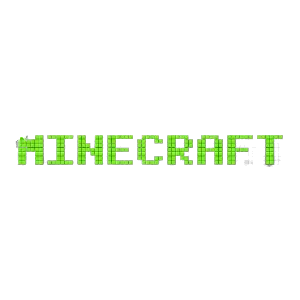
Each example renders a short phrase in block letters and numbers, with its width, height and total block count shown. Turn bold on or adjust spacing and scale, and the figures update straight away.

What is a Minecraft Text Generator?
A Minecraft text generator is an online tool that turns typed words into block lettering you can build in-game. It accepts A–Z, 0–9, punctuation and line breaks. A live preview shows each character in 3D or 2D, and the layout can be saved as PNG, SVG, JSON, CSV or a text map.
Pick a block such as stone or obsidian, then set spacing, scale and depth, each on its own slider. Stats show the block total before you build.
What This Generator Gives You
Enter your text and this generator turns it into a block pattern you can preview in 2D or 3D, count, and export.
Text Input and Spacing
The text box accepts up to 80 characters of letters, numbers and punctuation, building each glyph on a 5×7 grid. Lowercase input appears as capitals, and unsupported symbols show as a question mark. Sliders control letter spacing (0–5) and line spacing (0–8), and Enter starts a new line.
Bold, Scale and Depth
A Bold toggle thickens strokes, Block Scale enlarges letters up to 3×, and adjustable depth builds up to five layers. Because the preview updates automatically, you can test combinations without pressing a generate button.
Block Colors and Preview Modes
Choose a block color from twenty presets, such as grass block or deepslate, or add a custom color. The 2D view is a flat blueprint. The 3D view adds drag rotation, while scroll zooms both.
Counts, Row Guide and Downloads
Stats show the block total, stack count, width and height. The Row Guide lists each row’s runs and gaps to skip. Download a PNG, vector SVG, JSON or CSV coordinates, a copy-paste Text Map, or .schematic and .litematic files.
How to Use the Minecraft Text Builder
Type your text, adjust spacing and depth, and preview the blocky letters in 2D or 3D. Then copy the block counts or export the layout.
1. Enter Your Text
The box opens with MINECRAFT. Replace it with up to 80 characters. Letters, digits and common punctuation work, and lowercase is converted to capitals. Enter adds a new line, and unknown symbols become question marks.
2. Adjust Bold and Spacing
The Bold toggle thickens each stroke by one block. Sliders set letter gaps (0 to 5) and line gaps (0 to 8). Shorter lines center themselves on the longest line, so alignment is automatic.
3. Pick a Block Color
The dropdown holds 20 block colors, and the custom swatch beside it accepts any shade. Bright choices like emerald or sandstone stand out on the dark canvas. Block counts never depend on color.
4. Set Scale and Depth
Block Scale (1 to 3) enlarges each letter pixel, and Depth (1 to 5) adds layers that multiply the block total. Grid lines are on by default. Switch them off for a cleaner preview.
5. Preview in 2D or 3D
Pick 2D or 3D with the buttons at the top right of the preview. In 3D, drag to rotate, scroll to zoom, or press reset. In 2D, click each block you lay and it darkens. Editing the text or layout settings clears the marks.
6. Read the Stats and Export
Check width, height and block total in stacks of 64, then follow the Row Guide for each row’s block counts and skips. Export PNG or SVG diagrams, JSON or CSV coordinates, a Text Map, or .schematic and .litematic files.
Common Settings & Popular Presets
Scale and depth set how big and thick the lettering gets, while bold, spacing and grid options affect readability. Start from these common values.
| Option | Best For | Pro Tip |
|---|---|---|
| Text input | Short words and slogans, up to 80 characters in total, including line breaks | The glyph set covers A–Z, digits and common punctuation, so accented Latin letters and other unsupported symbols appear as question marks, and lowercase is converted to capitals. |
| Block Scale 1 | Compact lettering where all letters have equal widths, 5 blocks across (6 with Bold) and 7 tall | Read the Width and Height in the Stats panel first, so you know the lettering fits the space you’ve picked. |
| Block Scale 2 to 3 | Large lettering, where each letter grows to 10×14 or 15×21 blocks | Expect the block total to multiply by 4 at scale 2 and by 9 at scale 3, so confirm the stack count before gathering anything. |
| Depth 1 with 2D view | Single-layer lettering for a flat surface, placed one block at a time | Click blocks to mark them as placed. Changing the text, spacing, scale, depth or Bold clears those marks, so settle those first. |
| Depth 3 to 5 | Thick letters that stand on their own, such as a monument or spawn marker | Drag the 3D preview to check thickness from the side. Total blocks equal the flat count times the depth, so five layers cost five times as much. |
| Bold on | Headings that need chunkier strokes | Bold widens each letter by one block and adds that block to the spacing, so gaps stay the same. It can fill one-block gaps inside letters like M and W, so check the preview. |
| Line Spacing 2 to 4 | A main line above a tagline, split over two or three lines | Press Enter to start each new line. Every line is centered against the longest one, so shorter lines don’t need extra spaces. |
| Grid Lines off | Cleaner previews and exports once the layout is final | Switch them off before downloading, because the PNG and SVG both draw the grid while it’s on. |
| Block color | Matching the preview to real materials, including oak planks, cobblestone and grass | Pick one of the 20 presets or use custom colors. The chosen color changes the look and the block used in .schematic and .litematic exports, never the block count. |
✏️Pro Tips to Build Text in Minecraft
The generator draws from a limited set of characters, and anything unsupported will fall back to a question mark, so scan the preview before building.
Check width and height in Stats before picking a site. If it’s too big, shrink Block Scale, since each step up multiplies the block total.
Turning on Bold widens every stroke by one block, and that extra block is added to each letter’s width, so the gaps between letters stay the same. It can fill small gaps inside letters like M and W, so check the preview.
Press Enter for a second line. All lines center on the widest one, and a Line Spacing of two keeps rows clearly apart.
Choose a block that contrasts with your backdrop. Quartz stands out on a dark oak wall, and the swatch beside the Block dropdown previews the color you pick.
Follow the Row Guide, clicking blocks in 2D as you place them. Progress resets when the text or layout settings change, so finalize those first.
In-Game Workflow
Follow these four stages to turn typed text into a finished build in your world.
Set the Lettering First
Type your message, then settle bold, letter spacing, line spacing, block scale and depth. Together they set the size of the build.
Pick a Block and Check the Totals
Pick a block color, then check the Stats panel for width, height and block total. Raising depth multiplies that total, so recheck before gathering.
Build From the Row Guide
Follow the Row Guide, which lists the block runs and the gaps to skip between them for each row. Extra depth layers repeat the same rows, shown as ×depth.
Mark Progress and Download a Reference
Click blocks in 2D view to mark them placed. Changing the text or lettering settings clears those marks. Download a PNG for a reference image, or a Text Map for a copy-paste blueprint.
Common Mistakes
Six common slip-ups can send a block-text build back to the start.
Typing Characters the Tool Can’t Draw
Letters are drawn from a 5×7 bitmap covering A-Z, digits and common punctuation. Lowercase becomes capitals, and anything else, including emoji, accented letters and symbols like ~ or [ ], shows as a question mark.
Turning On Bold Without Checking the Preview
Bold widens every letter by one block and adds that block to the spacing, so the gaps between letters stay the same. It can fill small gaps inside letters like M and W, so check the preview.
Raising Scale and Depth Blindly
At Block Scale 3, every letter pixel becomes nine blocks, and each Depth layer repeats that total. Check Stats before settling on a large size.
Marking Blocks in the 3D View
Marking blocks as placed only works in the 2D view. In 3D, clicking does nothing to the blocks, and dragging only rotates the view. Switch before you start building.
Fixing a Typo Mid-Build
Any edit to the text, Bold, spacing, scale or depth wipes every placed mark, so proofread everything before placing the first block.
Expecting Transparent Exports
Both image exports include a dark baked-in background, so don’t expect a transparent PNG. JSON and CSV list one layer’s coordinates, even at higher Depth. Only .schematic and .litematic include every layer.
Conclusion
This Minecraft text maker converts each letter of the alphabet, plus digits and punctuation, into a block layout. It runs in your browser with nothing to install. Switch between 2D and 3D, check the block and stack counts, then save the file as PNG, SVG, JSON, CSV or a text map.
FAQs - Minecraft Text Generator
How to create text in Minecraft?
Build it from blocks: enter your text, then follow the Row Guide row by row in your world. Plain text goes on a sign.
Which languages does the generator support?
Only A–Z letters, digits and common punctuation are supported. Lowercase is converted to capitals. Cyrillic, Greek, accented letters and other scripts aren’t included, so unsupported characters appear as question marks.
How does the letter spacing work?
Spacing follows a fixed grid, not the game’s proportional text. Every letter is five blocks wide (six with Bold on), a space is three blocks wide, and Letter Spacing sets gaps of 0–5 blocks.
How can I generate Minecraft-style text?
Paste or type text, pick a block color, then adjust bold, spacing, scale and depth. The preview updates live, and one click downloads a PNG.
How do I make colored text?
Pick one of 20 block presets or a custom color, and it applies to every block. Green is the default, with no per-letter coloring.
What is the command for text?
It doesn’t output a command. The lettering is placed block by block, while /title and /tellraw display on-screen or chat text instead.
Does this work for Minecraft Bedrock and Java?
Yes. The generator produces a block layout, not an edition-specific file, so you can follow its Row Guide in Java or Bedrock.
Do I need to create an account to use the Minecraft Text Generator?
No. There’s no login or sign-up, so you can type your text, adjust the settings and download the result straight away.